
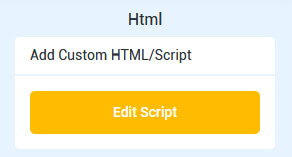
Place the script inside an HTML Element
<script>
// this block of code is optional.
hide_steps=false; // hide the Question #
hide_previous=false; // hide the Previous button
hide_progress_bar=false; //hide the Progress bar
fixed_height=true; //override survey question height
</script>
<script src="<https://msg.everypages.com/surveys/js/typeform-script.js>" id="jstp" step="Question"></script>
And place the styles inside the Custom CSS

@import url('<https://msg.everypages.com/surveys/styles/base/jotform.css>');
@import url('<https://msg.everypages.com/surveys/styles/base/bluewhite.css>');
/* Place Your Root Var Colors Below this */
And if you put the fixed_height to false the survey question height will set to auto.
<aside> ℹ️ Important: You can change the max height of your own choosing.
</aside>
If you choose to override the survey question height, you need to include this code inside the Custom CSS
#_builder-form .ghl-question-set {
    max-height: 500px !important;
    min-height: 500px !important;
}
You can also change the description of the step by changing the step attribute (see screenshot below).

HighLevel lets you further choose your options on the survey itself.
